
Welcome to Caseflow
Introduction
Caseflow is the ultimate workflow automation tool designed specifically for immigration lawyers. It streamlines your practice by automating repetitive tasks, organizing case data, and keeping your team on top of every deadline — allowing you to focus on your clients.
This training guides you through the key features and workflows of Caseflow, helping you maximize its capabilities to boost efficiency. The Training Manual takes about three hours to complete, but also serves as a quick reference whenever you need assistance.
What is Caseflow?
Caseflow is a dynamic app integrated with monday.com, tailored to meet the unique needs of immigration law practices. With Caseflow, you can:
- Simplify Case Management: Track case progress, milestones, and deadlines with ease.
- Automate Workflows: Minimize manual work by automating processes such as document requests, client updates, and task assignments.
- Centralize Collaboration: Keep your team aligned with shared boards, templates, and real-time updates.
Whether you're managing visas, green cards, or citizenship applications, Caseflow helps you and your team stay organized, compliant, and client-focused.
Key Benefits of Caseflow
- Time-Saving Automations — focus on high-value tasks while Caseflow handles the repetitive ones.
- Customizable Templates — adapt workflows to match the unique needs of your firm.
- Seamless Integration — built into monday.com, it fits right into your existing processes.
- Real-Time Tracking — stay updated on every case, ensuring no detail slips through the cracks.
About the Creators
Workiflow is a trusted monday.com Platinum Partner with expertise in designing custom workflow solutions. As the developers of Caseflow, Templify, Service List & USCIS Receipts Tracker, Workiflow brings deep technical knowledge and a passion for innovation to the legal tech space.
Heitz Immigration Law is a leading firm specializing in U.S. immigration law. Their hands-on experience with complex immigration cases ensures Caseflow is uniquely designed to meet the needs of immigration lawyers.
Global Mobility Partners provides corporate immigration services outside the USA, partnering with US immigration law firms to support clients anywhere in the world — contributing invaluable perspective on streamlining workflows for global practices.
About monday.com
Caseflow is built on the monday.com platform, a powerful Work Operating System (Work OS) that lets teams manage projects, workflows, and daily operations with flexibility and transparency. Before diving in, it helps to understand monday.com's basic terminology:
- Boards: Customizable tables for managing your data.
- Groups, Items, and Subitems: Organizational layers within boards.
- Columns: Fields that track data such as dates, people, and statuses.
- Automations: Rules that trigger actions automatically based on your workflows.
If you're new to monday.com or need a refresher, we recommend completing the official monday.com Training first. A strong foundation will ensure a smoother experience with Caseflow.
How This Training Will Help You
By the end of this course, you'll be confident in managing your workflows and leveraging the full potential of your new system. Here's what you'll learn:
- Lead and Contact Management — enter and organize new leads and contacts seamlessly.
- Consultations and Deals — track and manage potential clients using the Deals Board.
- Service Lists and Case Creation — use the Service List and create cases efficiently.
- Case Tracking from Start to Finish — master the Case Boards to oversee every stage.
- Task Management with Templify — create, assign, and manage tasks with ease.
- USCIS Receipt Tracking — enter, track, and view USCIS receipts directly from your Case Board.
- Maximizing Your System — tips and strategies to fully leverage and optimize your workflow.
monday.com Enterprise & CRM Features
Overview
Congratulations on signing up for CRM Enterprise on monday.com! With monday.com CRM Enterprise, you can take advantage of advanced tools designed to streamline your workflow, enhance automation, and improve team collaboration. This section highlights the features that pair best with Caseflow.
Highlighted Features We Love
1. Mass Emailing
Mass Emailing in monday.com lets you send bulk emails directly from your CRM, making it easier to communicate with leads, clients, or case stakeholders. This helps legal teams:
- Send updates to multiple clients at once.
- Automate email follow-ups and reminders.
- Personalize bulk emails using dynamic fields.
2. Email Sequences
Email sequences let you schedule and automate a series of follow-up emails based on client activity. This is useful for:
- Sending automated follow-ups to new leads.
- Keeping clients engaged during the case process.
- Ensuring timely reminders for deadlines and case milestones.
3. Conditional Status Changes
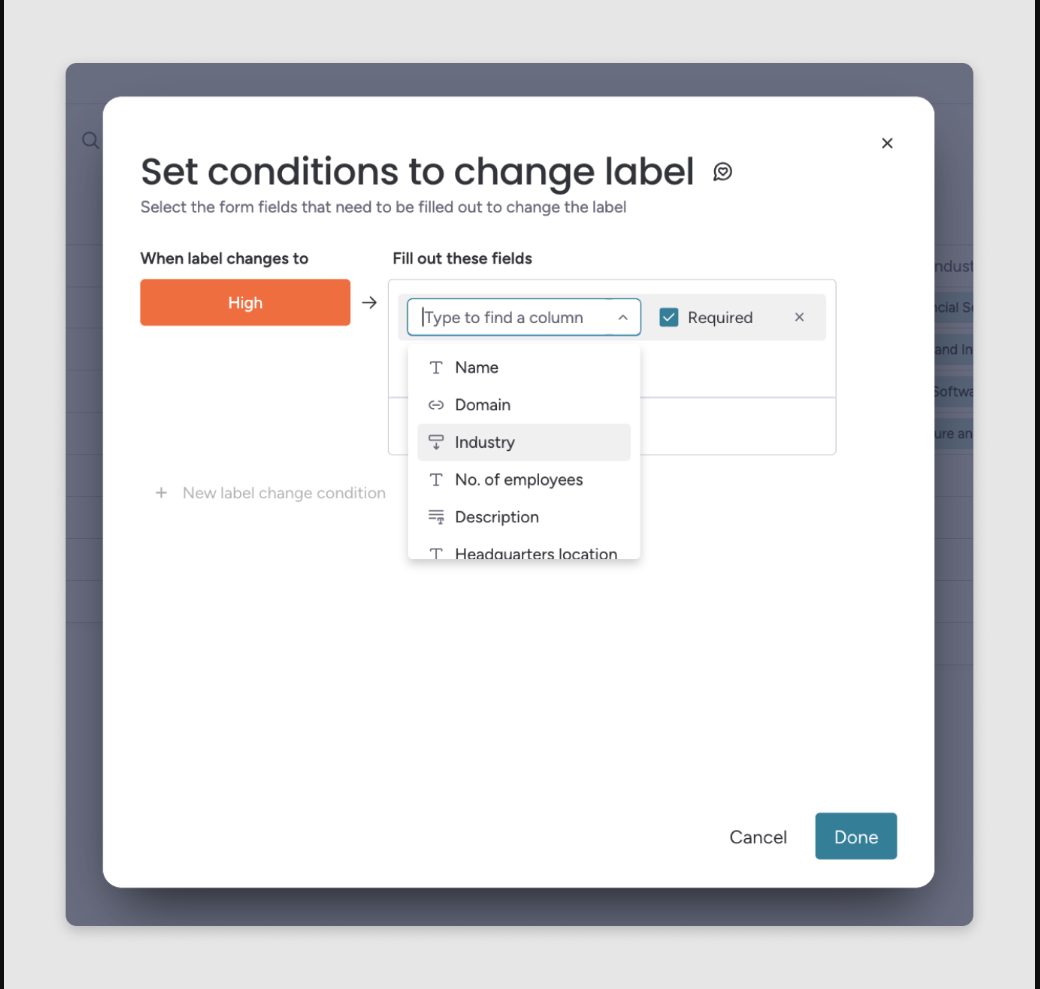
Conditional status changes let you enforce required fields when changing a status label. Certain conditions, set by a board owner, must be met before a team member can change a Status Column to a specific label — for example, to mark a deal as "Won", your team member must first complete the "Amount" field.
4. Enterprise Board Permissions
For firms handling sensitive legal cases, managing access to data is critical. Enterprise Board Permissions allow you to:
- Control who can view, edit, and delete specific information.
- Restrict access to certain boards or cases.
- Enable role-based permissions for different team members.
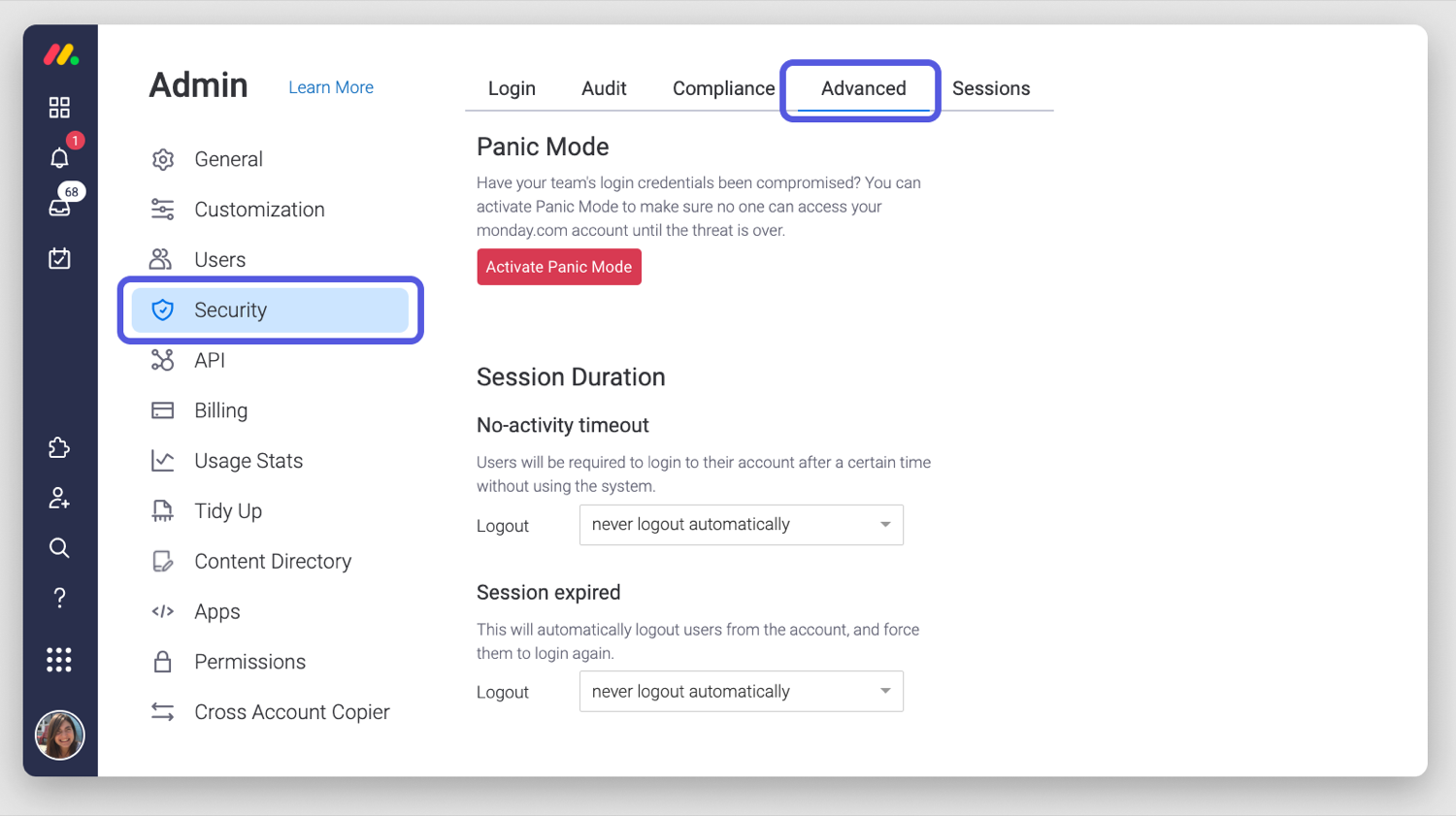
5. Security & Privacy
Security and privacy are crucial when managing sensitive client data. monday.com offers:
- Role-based access controls to protect confidential information.
- Data encryption to ensure client records are secure.
- Activity logs to track all user actions within the CRM.
- Two-factor authentication (2FA) for added security.
6. Emails & Activities Tracking
The Emails & Activities feature consolidates all email communication, meetings, and case notes in one place. This helps legal teams:
- View the entire communication history with a client.
- Track past emails, calls, and meetings.
- Set up follow-up reminders to maintain engagement.
Ready, Set, Go!
Now that you're familiar with monday.com, let's dive into Caseflow — the custom-built case management system designed specifically for immigration law firms.
Contact & Deal Management
Managing your contacts and deals effectively is key to building strong client relationships and maintaining an organized practice. This section guides you through adding and managing contacts, tracking potential clients, and progressing them through the pipeline using the Deals Board.
What You'll Learn
- Add and manage leads and contacts in your system.
- Track consultations and potential clients through the Deals Board.
- Organize deals based on their stage in the pipeline.
Creating and Managing Contacts
Every Lead, Deal, and Case begins with a Contact. This should be your first step when working with a new or existing client.
Understanding the Contacts Board
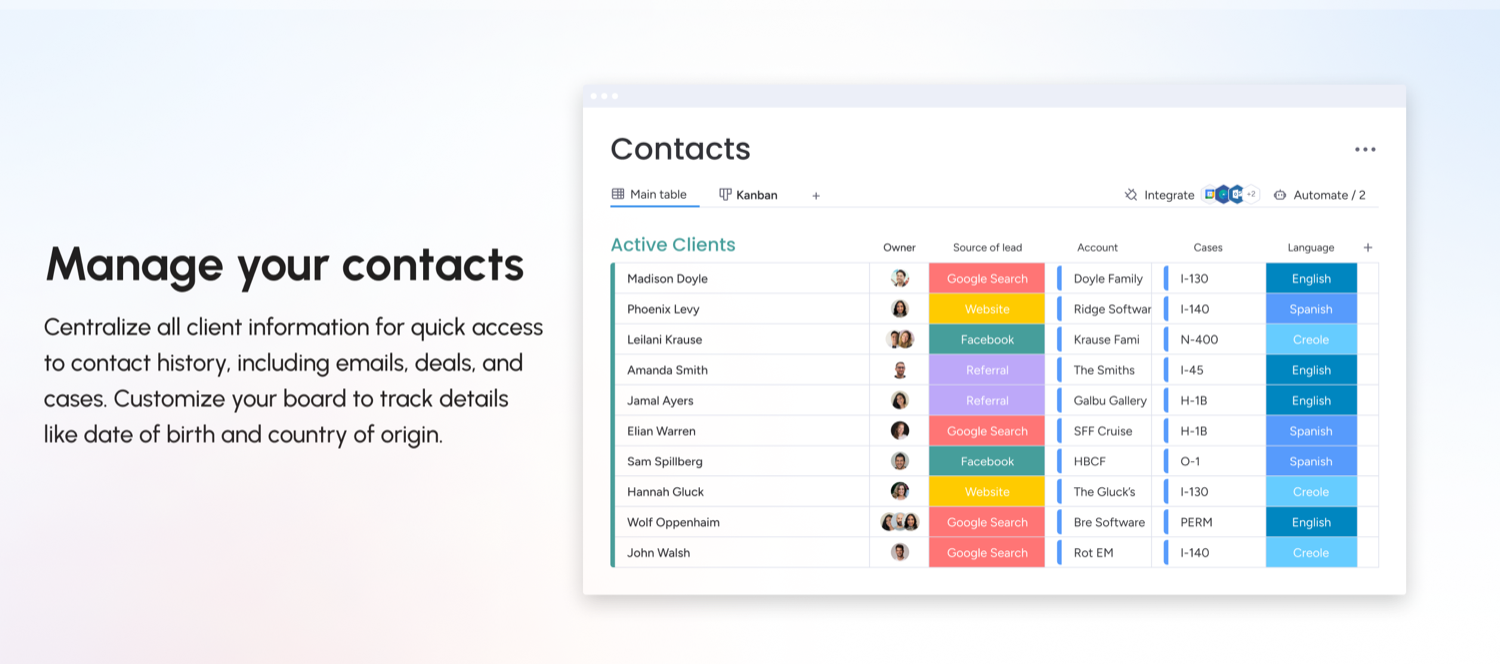
The Contacts Board serves as your client database, where all contacts are stored. Once a contact is added, you can create a Deal to track initial meetings, contracts, and payments in the Deals Board. Contacts can also be linked to an Account to establish relationships between individuals or organizations — for example, connecting family members or associating employees with a company.
Adding a New Contact — Option 1: Using a Contact Form
- Navigate to your CRM & Case Management workspace.
- Open the Contacts Board and click the Contact Form view.
- Fill out the form with the relevant lead details.
- Click Submit to create the contact — the new entry is automatically added to your Contacts database.
- You can later update or add more details in the Main Table view.
Adding a New Contact — Option 2: Manual Entry
- Navigate to the Contacts Board in Caseflow.
- Click + New Item to create a new contact.
- Enter key details such as name, email, phone number, and any additional notes.
- If applicable, link the contact to an Account to associate them with a family or company.
- Save your changes.
Adding and Connecting a New Account
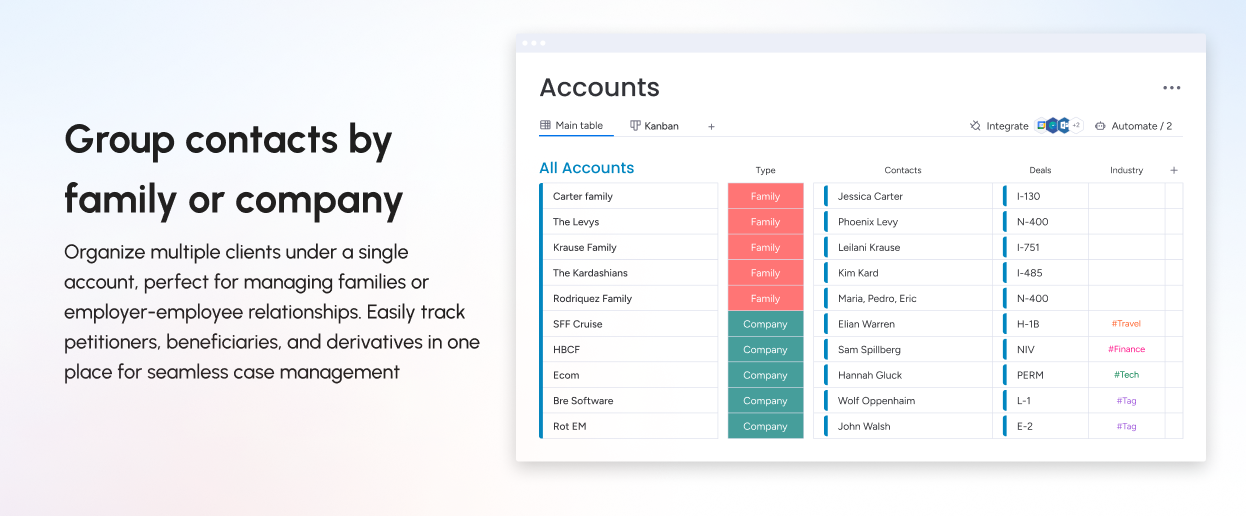
In Caseflow, an Account represents an organization or family that multiple Contacts can be linked to. This helps organize relationships between clients, businesses, and cases.
Why Use Accounts?
- Group related contacts under one entity (e.g., a company or family).
- Easily track multiple cases linked to the same organization or household.
- Improve case management efficiency by organizing client relationships.
- Seamlessly connect clients to the same Deal, associating multiple individuals under the same Deal/Case.
How to Add a New Account
- Open your Caseflow workspace in monday.com and select the Accounts board.
- Click the New Account button at the top left.
- Enter the Account Name (e.g., "Doe Family" or "Tech Innovators").
- Select the Account Type — Corporate for businesses and organizations, or Family for households or related individuals.
- If applicable, enter the company domain (e.g., pear.inc, binder.com).
- Assign the priority level (High, Medium, or Low) and choose an industry category if relevant.
Connecting Contacts to an Account
Option 1 — From the Accounts Board: locate the "Contacts" column in the Accounts Board, click the "+" button, search for the contact's name, and select it to link them. Option 2 — From the Contacts Board: find the "Account" column for the contact, click the dropdown, search for the relevant account, and select it.
Creating and Managing Deals
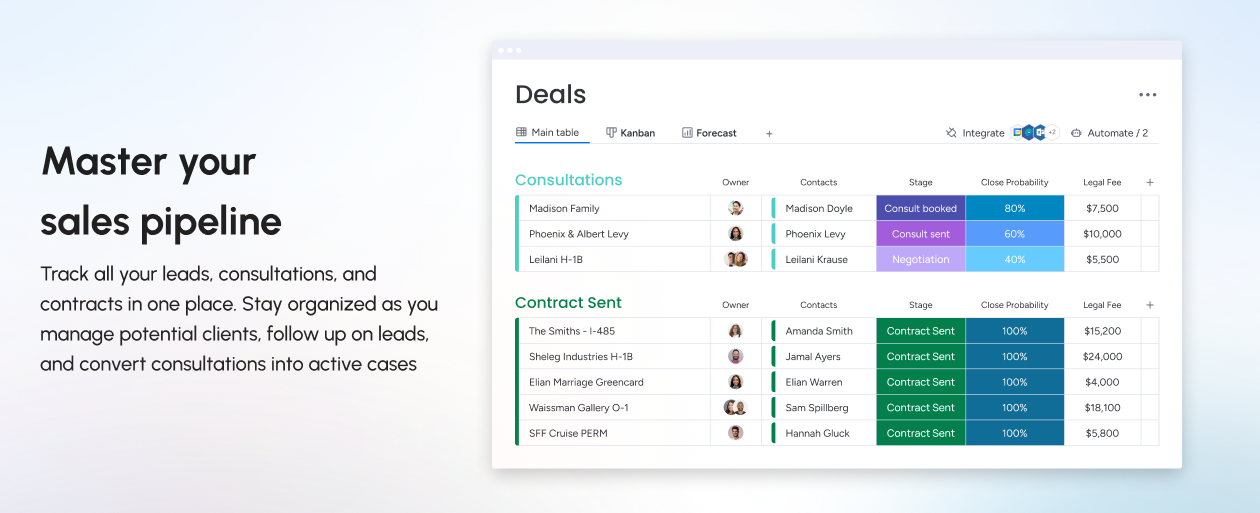
The Deals Board is where you track new clients from their initial meetings to services required, contract signing and payment. Once a client officially signs up, a case is created in the corresponding Case Board and managed there.
Creating a Deal in the Deals Board
- Navigate to the Contacts Board.
- Scroll to the end of the columns and locate the "Create Deal" column.
- From the dropdown, select "Create Now".
- This will automatically create a new Deal in the Deals Board and link it to the contact.
- The deal is now visible in the Deals Board, with key details pulled from the Contacts Board.
Using the Stage Column
Once a deal is created, track its progress using the Stage Column in the Deals Board. Navigate to the Deals Board, locate the Stage Column, click the dropdown, and select the appropriate stage (e.g., Initial Consultation, Proposal Sent, Contract Signed). Each stage helps you visualize the deal's progress.
Understanding the Stage Length & Deal Length Columns
- Stage Length tracks the number of days a deal has remained in its current stage — helping identify bottlenecks. Every time you update the Stage Column, Stage Length resets to 0.
- Deal Length measures the total number of days since the deal was created, continuing until it is marked as Closed.
Next Steps
Now that you know how to create and track deals, the next step is to convert closed deals into active cases by adding them to the Case Board — covered in the next sections.
Service List App
What You'll Learn
- Manage and update your Service List.
- Add services from the Service List app based on your client's needs.
- Transition deals seamlessly into active cases once a client engages your services.
What is the Service List App?
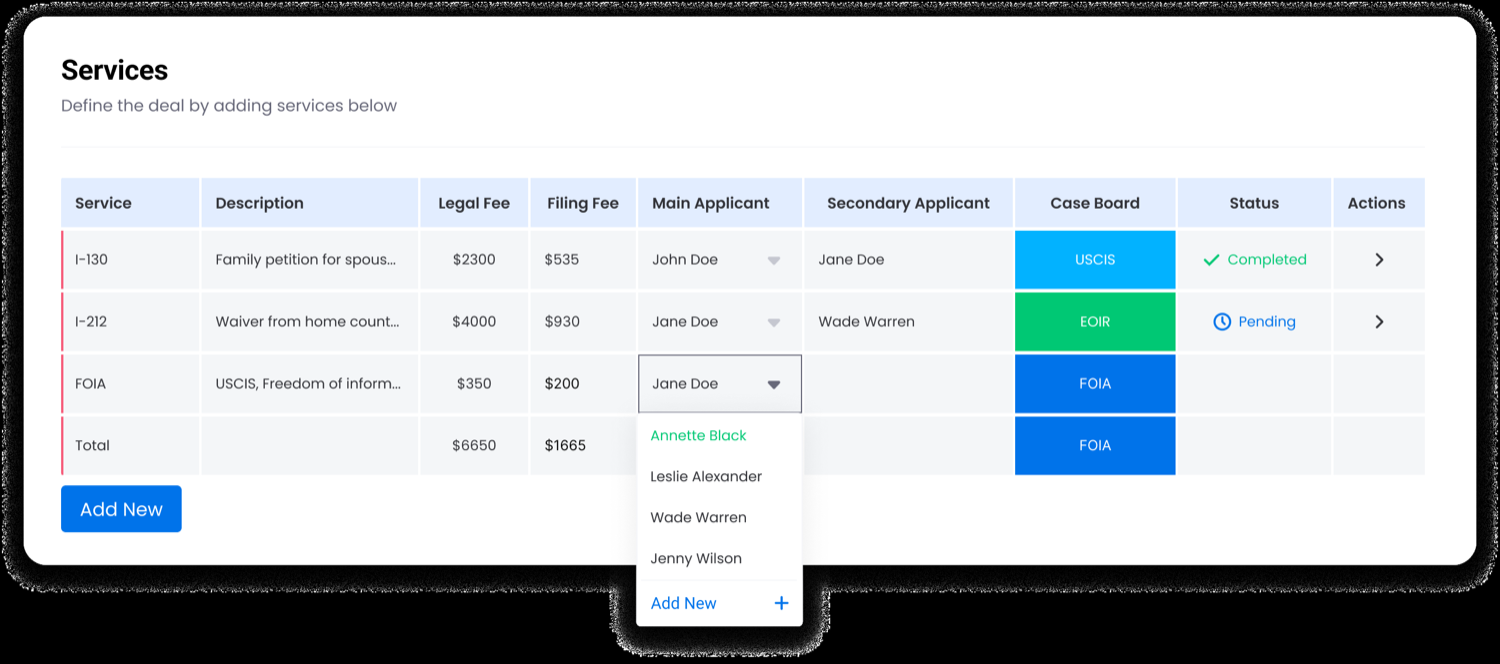
The Service List App is an exclusive feature developed by Workiflow for Caseflow to simplify and automate the process of managing immigration services. This powerful tool allows you to:
- Standardize Service Offerings — maintain a structured list of legal services with predefined fees and descriptions.
- Automate Case Creation — services linked to a deal automatically generate cases in the correct Case Board when the deal is signed up.
- Reduce Manual Data Entry — easily add multiple services and applicants directly within the Deals Board.
- Ensure Consistency Across Cases — track services, fees, and applicants with a centralized, organized workflow.
Columns in the Service List App
- Service Name & Description — the specific immigration service offered (e.g., E-2 Visa, N-600 Certificate of Citizenship), plus a detailed explanation of scope, eligibility, and key details.
- Legal and Filing Fees — the cost of legal representation, and the government-imposed fees required to process the application.
- Case Category (Case Board Assignment) — which Case Board the service will be assigned to once the case is created (e.g., USCIS, FOIA, EOIR Court).
- Automatic Case Creation Toggle (Creates Case?) — a Yes/No column that determines whether selecting this service will automatically generate a case in the assigned Case Board.
Editing and Customizing the Service List
Editing an Existing Service
- Navigate to Deals Board → Service List Tab.
- Locate the service you want to modify.
- Click Edit in the Actions column.
- Update details such as legal and filing fees, service description, case category assignment, and whether the service creates a case automatically.
- Click Save Changes to apply updates.
Adding a New Service
- Click "Add New" at the bottom of the Service List.
- Fill in the required details: service name & description, legal and filing fees, case category, and the automatic case creation toggle.
- Assign the service to the correct Case Board.
- Click Save to finalize.
Best Practices
- Regularly review and update services to match legal and filing fee changes.
- Ensure that every service is linked to the correct case board for automation.
- Use clear and concise service names for better selection efficiency.
- Keep outdated services inactive or delete them to maintain a clean list.
Adding Services to a Deal
Once a deal is created, you can add multiple services and applicants directly from the Item View.
- Open the Deals Board and click on a Deal Name to enter the Item View.
- In the Service List section, click Add New.
- Select the required service from the dropdown.
- Confirm or modify the Legal Fee, Filing Fee, and Case Category.
Once a service is added to a deal, all services and fees linked to the deal are reflected in the Deal Item. Automatic updates include: legal and filing fees (summarized for accurate financial tracking), the services list, main & secondary applicants, and Case Board assignment — which automatically places the case in the correct workflow once marked as Signed-Up.
Managing Multiple Applicants in a Deal
Some immigration services involve multiple applicants (e.g., spouses, dependents, business partners).
- In the Service List under a deal, select the Main Applicant from the dropdown.
- Click on the Secondary Applicant field and select additional contacts — you can select any contact linked to the same Account.
- This ensures all applicants are connected to the same service and case when created.
Creating a Case
When a deal moves to the "Signed Up" stage, cases are automatically created in the corresponding case boards. The deal is updated with all services, fees, and applicants linked to it, the assigned legal team is notified, and case tracking begins.
- Navigate to the Deals Board.
- Locate the deal and update the Stage Column to "Signed Up".
- The deal will trigger Case Creation in the appropriate Case Board, transfer of service details, fees and applicants, and any automations.
Best Practice: before marking a deal as Signed Up, review all service selections and fees to ensure accuracy. Case creation can take up to a minute — refresh your page if you don't see it!
Case Management
Case management is the core function of Caseflow, allowing legal teams to efficiently track, manage, and collaborate on cases from initiation to resolution. This section covers how to manage cases effectively and navigate the Case Boards within the system.
What You'll Learn
- Understand how cases are created and assigned within Caseflow.
- Navigate different Case Boards based on case types and categories.
- Track case progress, deadlines, and key milestones.
- Use automation and integrations to streamline case management.
Managing Cases and Navigating Case Boards
How Cases Are Created
- Cases are automatically generated when a Deal is marked as Signed Up in the Deals Board.
- Each case is assigned to the appropriate Case Board based on the selected service.
- Cases can also be created manually when needed.
Understanding Case Boards
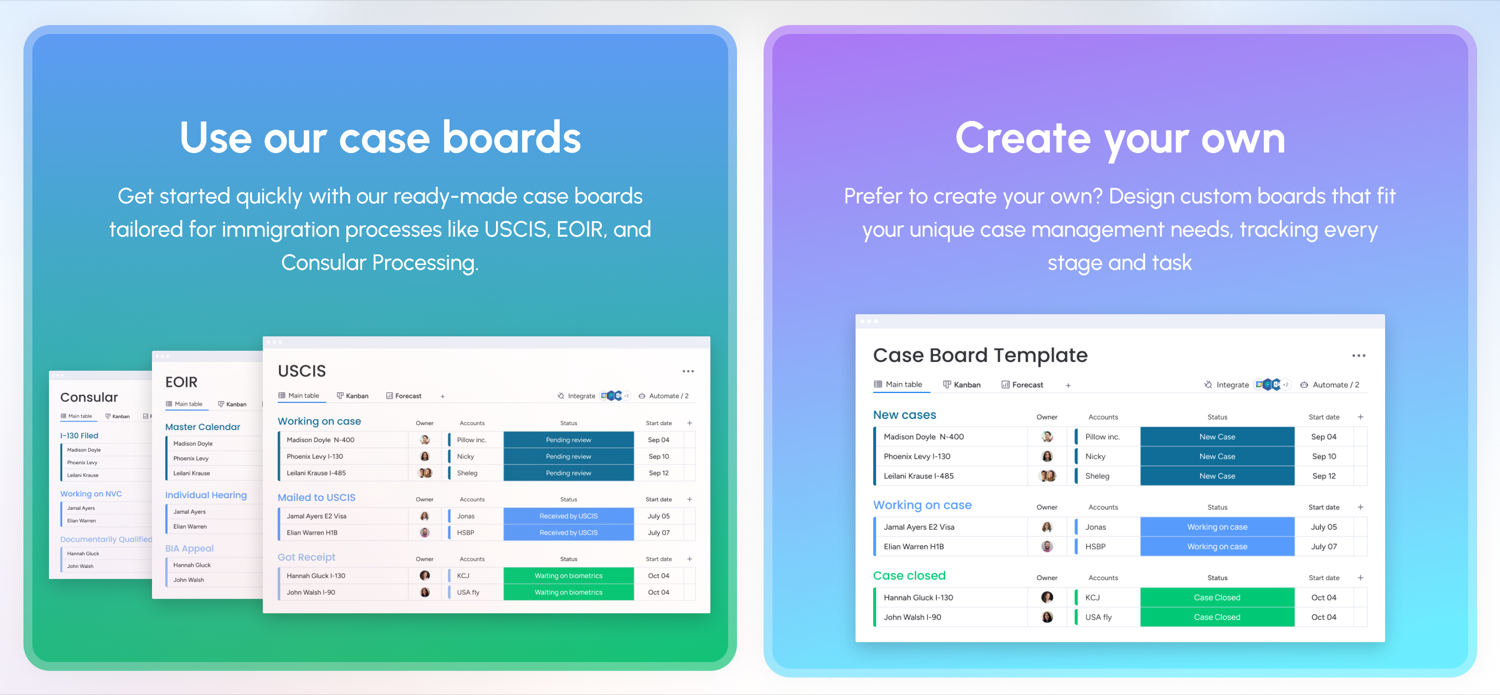
Each Case Board is structured to reflect a different legal process. Common case boards include:
- USCIS Board — tracks cases that require USCIS applications and filings.
- EOIR Court Board — manages cases involving court appearances and motions.
- FOIA Board — handles records requests under the Freedom of Information Act.
- Consular Processing Board — manages visa applications requiring consular interviews.
Tracking and Managing Cases
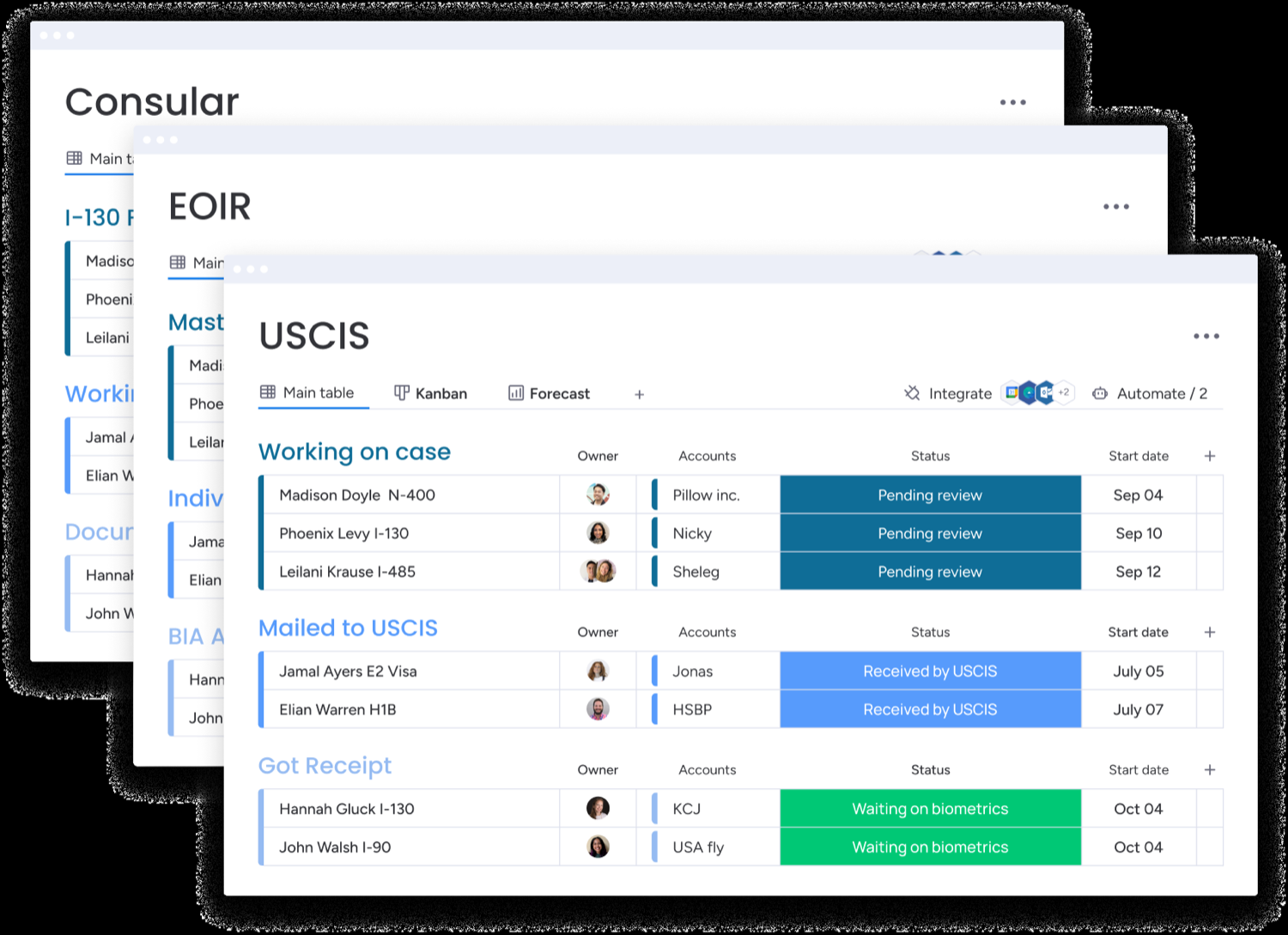
Once a case is created, users can:
- Assign a Case Owner (Attorney/Paralegal).
- Set important deadlines and receive automatic reminders.
- Update the Case Status to reflect progress.
- Upload and manage case-related documents.
- Communicate with clients and team members directly within the case.
Best Practice: regularly update case statuses and add notes to maintain an accurate case history.
Using Automations & Integrations
Using automation in monday.com helps streamline case progress, including automatic deadline tracking and reminders, status updates when key milestones are met, and task automation for managing case-specific workflows. Leverage automations to minimize manual tracking and improve efficiency.
Future Cases Board
The Future Cases Board helps you track upcoming cases for existing clients. Whether it's a removal of conditions (I-751), naturalization (N-400), or DACA renewal, this board ensures clients receive timely reminders and remain engaged with your firm for their next steps. It primarily functions as a follow-up system to bring back past clients when their next case becomes eligible.
Adding a Future Case
- Navigate to the Contacts Board in your Caseflow system.
- Search for the client and change the Create Future Case status to Create Now.
- A new item will be automatically created in the Future Cases board.
Setting Up Future Case Reminders — Key Dates
- Case Start Date — 90 days before the Filing Date. The first reminder, encouraging clients to sign up early so there's enough time to prepare.
- Filing Date — 90 days before the Final Eligible Date; the earliest point a case can be filed (based on USCIS guidelines for N-400 and I-751). Custom timelines can be configured for other case types.
- Critical 1-Month Out Reminder — a high-priority reminder that the case must be filed within the next 30 days, ensuring urgent follow-ups if the client hasn't signed up yet.
- Final Eligible Date — the last possible date the case can be filed (the absolute deadline, especially for I-751). This is the only date you need to manually enter — all other dates calculate automatically based on it.
Example
If a client received a green card through marriage, they'll need to file an I-751 removal of conditions in two years. Set the Final Eligibility Date as June 20, 2027 (when the green card expires) and the system calculates: First Filing Date March 21, 2027 (90 days before expiration), One-Month Out Reminder May 21, 2027, and Case Start Date December 23, 2026 (first reminder). The same structure applies to naturalization (N-400).
Automations and Email Reminders
The Future Cases Board sends three automated emails at key intervals: three months before filing (a reminder the case is approaching), one month before filing (a follow-up if they haven't signed up), and a critical deadline email (a final notification if they haven't filed).
Managing Client Interest Levels
- Strong Interest — clients who confirmed they will return.
- Will Sign Up — clients who need further follow-up but are likely to move forward.
- Not Interested — clients who do not plan to proceed (automations turn off future reminders).
Important: to have automated emails sent based on the dates set in this board, you must install email integrations from your monday.com profile (instructions below). If you encounter any issues, please reach out to us for assistance.
Adding Future Case Board Email Integrations
To ensure your clients receive automated reminder emails as their filing deadlines approach, set up email integrations on your Future Cases Board in monday.com.
Step 1: Access the Integrations Center
- Log in to monday.com and select the Future Cases Board from your workspace.
- In the top-right corner of the board, click the "Integrations" button.
Step 2: Set Up Email Automations
Create multiple email automations to notify clients at different stages. For each, search for Gmail or Outlook in the Integrations Center and select the recipe "When status changes to something, send email to someone." Set the trigger status, choose the Email column as the recipient, and enter the template below.
A. "Start Case" Reminder Email (trigger: Start Case)
Subject: Upcoming Immigration Case: [Case Type]

Hello [Client Name],

We want to let you know that you will soon qualify to file your immigration case: [Case Type]. The earliest you can file your case is: [Earliest Filing Date].

As a valued client, it is our goal to always keep you informed of all immigration eligibility dates and deadlines. We will continue to remind you of this so that you can be fully prepared to begin working on this.

Please contact us to book your free consultation to discuss your case.

Best regards,
[Your Firm's Name]
B. "File Now" Reminder Email (trigger: File Now)
Subject: Time to File Your Case: [Case Type]

Hello [Client Name],

It's now time to file your case for: [Case Type]. If you have not yet contacted us, we urge you to do so. It's important that you are fully aware of your eligibility and immigration deadlines.

Best regards,
[Your Firm's Name]
C. "Critical Deadline" Final Reminder Email (trigger: Critical Deadline)
Subject: Critical Deadline Approaching for Your Case: [Case Type]

Hello [Client Name],

We are writing to inform you that you have a filing date approaching for: [Case Type]. Your filing date is: [Filing Date].

If you have already taken care of this immigration filing, please let us know so we can update our records. Otherwise, we encourage you to contact us immediately to begin the process. We value our client relationships and want you to know that we are here for you.

Best regards,
[Your Firm's Name]
D. (Optional) "Every 3 Weeks" Follow-Up Reminder
In the Integrations Center, select "Every time period, if status is something, send email to someone." Set the time period to every 3 weeks, choose Pending as the trigger status, and use the template below.
Subject: Reminder: Upcoming Immigration Case: [Case Type]

Hello [Client Name],

This is a reminder that you have an immigration case coming up that you need to file, and we are here to assist you: [Case Type]. The earliest that we can file your case is: [Earliest Filing Date].

Please contact our office as soon as possible so that we can arrange to get you started. If you no longer wish to receive these reminder notices, please reply to this message to let us know.

Best regards,
[Your Firm's Name]
Final Steps
- Test the automations — ensure each email triggers correctly before relying on the system.
- Monitor client responses — update case statuses based on replies to prevent unnecessary follow-ups.
Using the Case Board Template
The Case Board Template is a free, pre-configured case board designed to help you quickly set up additional case types within Caseflow. It's already integrated with the Deals Board, Service List, and Contacts Board, and is fully reusable — duplicate it as many times as needed to create customized case boards for different case types.
1. Duplicating the Case Board Template
- Navigate to the Case Board Template in your Caseflow workspace.
- Click the three-dot menu (•••) next to the board name.
- Select "Duplicate Board" and choose "Duplicate Structure Only" (to copy the setup without existing data).
- The new board appears as "Case Board Template - Copy".
- Rename it to reflect the new case type (e.g., "Employment-Based Cases" or "Investor Visa Cases").
2. Customizing the Duplicated Board
- Rename the board to reflect the new case type (e.g., "PERM Cases").
- Turn on and authorize integrations — click Automate in the top right, toggle all integrations "On" and follow the steps to authorize each. Do not change any of the recipes.
- Update status labels — click the Stage Column dropdown and edit or add labels to match the workflow (e.g., "Initial Review," "Filed," "Awaiting Decision," "Completed").
- Add or modify columns — capture details such as Case Type, Case Owner, Stage Date, and Filing Date.
3. Managing Cases Using the New Board
Once customized, the duplicated board functions just like any other Caseflow case board: track case progress with the customized status labels, assign case owners, monitor filing and deadline dates, and attach case-related files and documents — while remaining linked to the Deals, Service List, and Contacts Boards.
4. Expanding Your Case Boards
Since you can duplicate the template as many times as needed, you can create multiple customized boards for different case types. If your firm requires more advanced automations or integrations, our team offers custom board creation services — we can set up new case types with automations, customize workflow stages and columns, and integrate new boards with your existing Caseflow modules. Reach out for a quote.
Task Management with Templify
Overview
The Templify App is a powerful tool designed by Workiflow to enhance efficiency within your Caseflow system. By enabling the creation of reusable templates for groups, items, and subitems, Templify ensures consistency and saves time across repetitive tasks.
Important: the Templify Free Plan allows you to apply up to 10 templates per month. If you require a higher quota, an upgrade to a paid plan will be necessary.
What You'll Learn
- Understand the role of Templify in standardizing workflows and automating repetitive processes.
- Create subitem templates for common case types (New Matter Setup, RFE, Change of Address).
- Apply templates to new and existing cases for accuracy and consistency.
- Use Templify to automate case workflows based on case status changes.
- Manage tasks efficiently in the MyWork view to ensure deadlines and client requirements are met.
For more in-depth details on Templify, refer to the [Templify How-To Guide](/templify-how-to-use).
Subitem Task Templates — Best Practices for Immigration Law Firms
- Standardize case processes — develop templates for each type of immigration case so all necessary steps are followed consistently.
- Utilize dynamic dates — set dates relative to key milestones (e.g., filing deadlines) to keep the team on track.
- Assign roles automatically — use dynamic people fields to assign tasks based on roles.
- Automate routine tasks — implement automations to apply templates when specific triggers occur.
Viewing and Managing Tasks in MyWork
Templify lets you create predefined subitem task templates that automatically assign tasks, due dates, and owners when applied to a case. When subitems have an owner and a due date, they automatically appear in the assigned team member's MyWork section in monday.com.
- Apply a subitem template using Templify — navigate to a Case Board, open or create a case, and use Templify to apply a subitem template, automatically generating task lists specific to the case type.
- Predefined tasks are assigned automatically — each subitem task is created with a predefined task name, due date, and owner; assigned team members see these in their MyWork section without manual input.
- Track and complete tasks in MyWork — open MyWork from the left panel, view assigned subitem tasks across cases, update progress, mark complete, or add comments. Updates reflect automatically in the Case Board.
Benefits: ensures all cases follow a structured task workflow, eliminates manual task creation, improves accountability by auto-assigning tasks to the right team members, and keeps teams on track with centralized task management in MyWork.
More Resources
USCIS Receipts Tracking
Overview
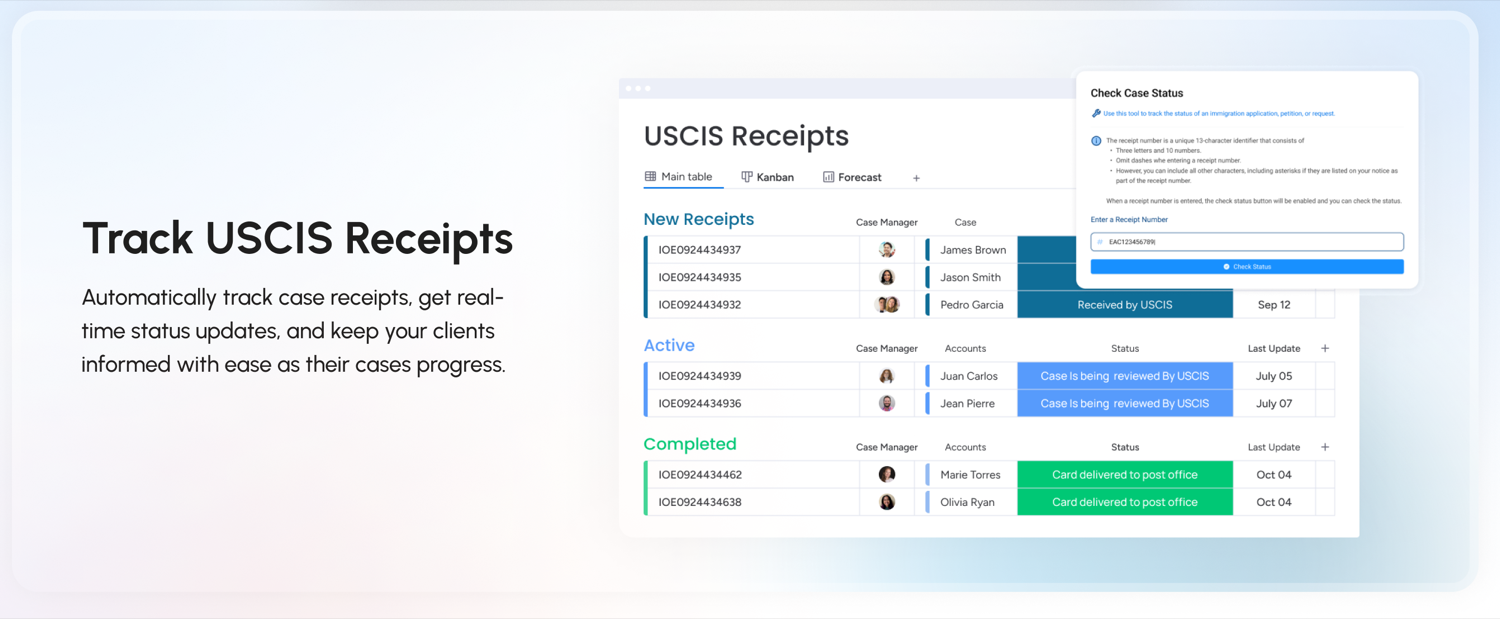
The USCIS Receipts Tracking system in Caseflow allows you to efficiently track receipt numbers and case statuses directly within monday.com. Once a receipt is added, it is automatically linked to both the client's case and the USCIS Receipts Tracking Board, allowing centralized tracking across all active cases.
Please note: the USCIS Receipts app is currently in Beta testing and might become a paid feature in the near future.
What You'll Learn
- Enter new USCIS receipt numbers into the USCIS Receipts UI within a client's case.
- Track real-time case status updates retrieved directly from USCIS.
- Use the USCIS Receipts Tracking Board to monitor all receipts in a centralized view.
- Retrieve case processing times and inquiry dates to estimate wait times.
- Set up automations for case status change notifications.
Entering Receipts
Step 1: Open the Client's Case and Navigate to USCIS Receipts UI
- Go to the USCIS Board and open the client's case.
- Click "Open Item Page" for the case.
- In the Item Page View, click More and select "USCIS Receipts UI" from the dropdown menu.
Step 2: Add a New USCIS Receipt
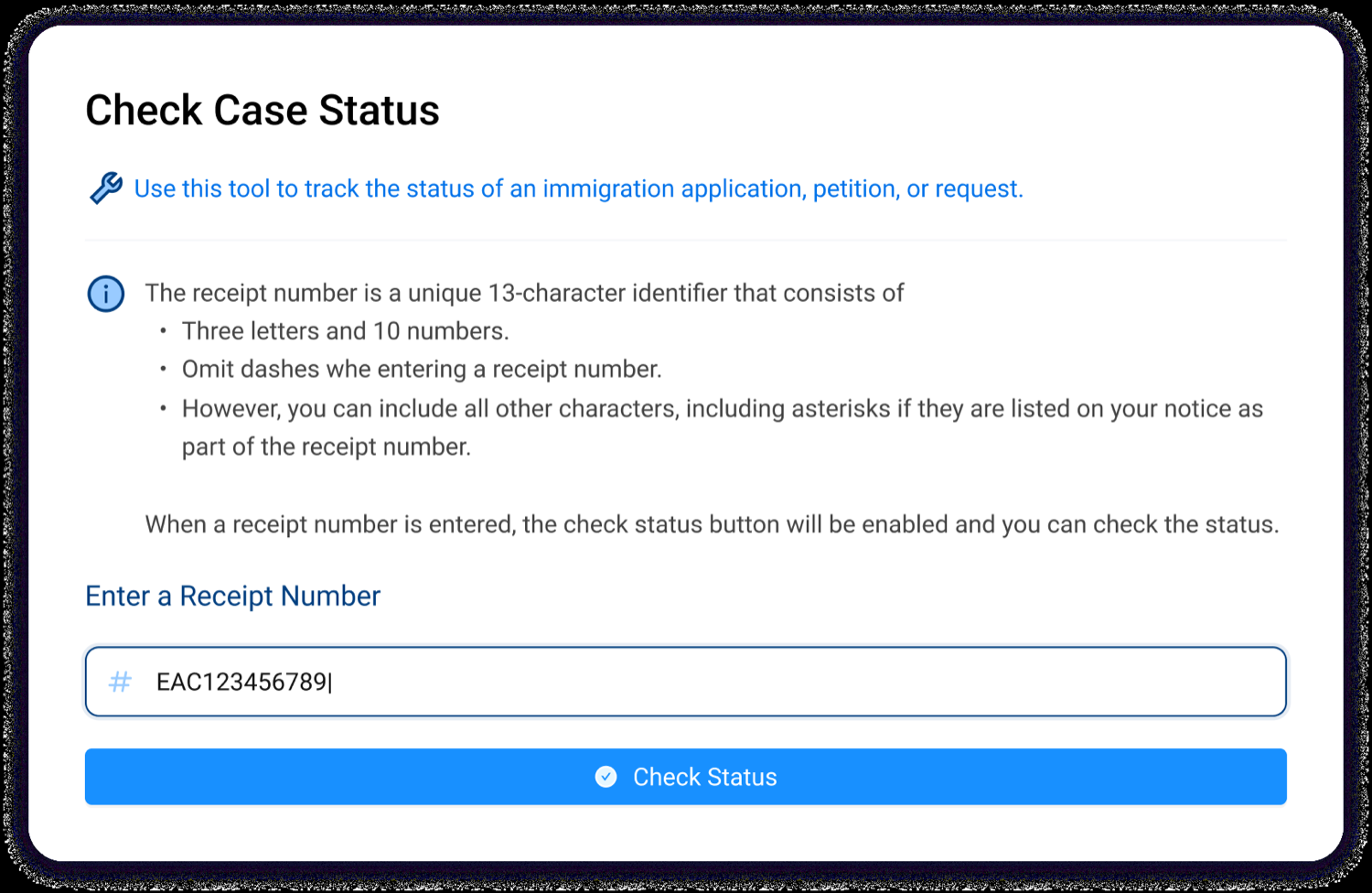
- Click "New Receipt" in the USCIS Receipts UI.
- Enter the USCIS Receipt Number and click "Check Status".
- Wait a few seconds for the system to retrieve the case status.
- Once added, the receipt automatically appears in the USCIS Receipts Tracking Board.
Step 3: Getting Processing & Inquiry Dates
Retrieve USCIS processing times: in the USCIS Receipts UI, click "Get Case Processing Time", choose the correct Form Category and Service Center, and click Submit. Retrieve the inquiry date: click "Get Inquiry Date" to check when an inquiry can be submitted for delayed cases. The retrieved dates automatically populate in both the USCIS Receipts UI and the Tracking Board, keeping all records up to date.
Viewing All Receipts
The USCIS Receipts Tracking Board displays all receipt numbers across active cases. Each receipt entry includes the Receipt Number, Client's Case Name, Case Status, and Processing Time & Inquiry Date.
Automating Case Status Notifications (Optional)
If you want to notify clients or legal teams about status changes, set up an automation: navigate to the Automate section in monday.com, select "When [Case Status] changes, send email to [Email]", customize the email message, and save. This ensures case progress is actively monitored and no critical updates are missed.
FAQs
Why isn't my case status updating?
The system may take a few seconds to fetch the latest data. Click "Refresh" in the USCIS Receipts UI.
Can I automate status update notifications?
Yes — you can set up an automation in monday.com to send emails when a case status changes.
How often should I check the USCIS Receipts Tracking Board?
The board updates automatically on a daily basis.
Can I remove a receipt if I entered the wrong number?
Yes — in the USCIS Receipts Tracking Board, locate the incorrect entry and click "Delete".
Thank You for Completing the Caseflow Training
We appreciate you taking the time to learn how to effectively manage your immigration cases using Caseflow. With this training, you are now equipped to streamline case tracking, manage leads efficiently, and enhance your workflow with powerful automations.
Enhance Your Caseflow System with Integrations
Looking to further optimize your workflow and increase automation? We offer custom integrations to help you:
- Automate contracts and document signing — integrate PandaDoc to send contracts directly from Caseflow.
- Streamline client intake forms — use JotForm to send out your pre-consultation intake questionnaire.
- Capture and track leads automatically — Smith.ai for automatic lead entry from calls and web inquiries.
- Seamlessly schedule and track meetings — connect Calendly to sync consultations and case follow-ups.
If you're interested in custom integrations, contact us for a quote and we'll help tailor Caseflow to fit your firm's needs.
Helpful Resources
- Templify How-To Guide
- monday.com MyWork
- monday.com Automations
- monday CRM for Enterprise
- PandaDoc
- JotForm
- Calendly
- Smith.ai
Need Assistance? Contact Us
If you have any questions, need support, or want to discuss custom features, our team is ready to assist you.
Email: misha@workiflow.com · Website: workiflow.com
Thank you for choosing Caseflow. We look forward to helping you simplify case management and improve your firm's efficiency.