On this page
Sales teams have run on the same broken pattern for years: call a lead from a personal cell or a separate dialer app, then try to remember what was actually said well enough to type up notes before it fades.
monday Smart Call closes that gap by building calling directly into monday CRM, with AI handling the recording, transcription, and note-taking automatically. We'll run through what exactly It can do currently as well as how to set it up.
What Is monday Smart Call?
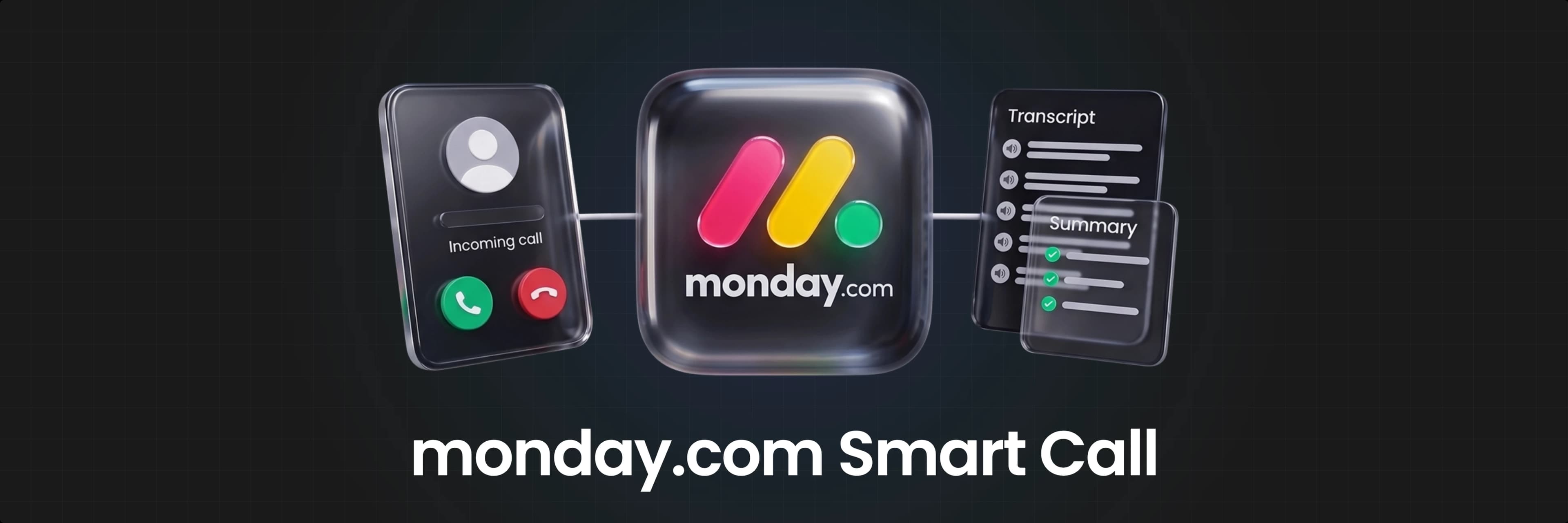
monday Smart Call is a mobile-first calling feature built inside monday CRM. Your team gets a dedicated business number purchased directly inside the platform, so calls to leads and contacts never expose a personal number. Every call, inbound or outbound, is automatically recorded, transcribed, and summarized by AI, then logged to the relevant CRM record with a timestamp, duration, and outcome. No manual note-taking required.
It's available on monday CRM's Basic, Standard, Pro, and Ultimate plans. Buying and managing numbers requires admin permissions, and placing calls requires a paid seat with an assigned number.
Key Features
Business number purchase. Buy a US phone number directly inside monday from Account Settings, no external vendor or separate porting process required.
Outbound calling from mobile. Tap any phone number field on a lead, contact, or deal record in the monday mobile app to start a call instantly.
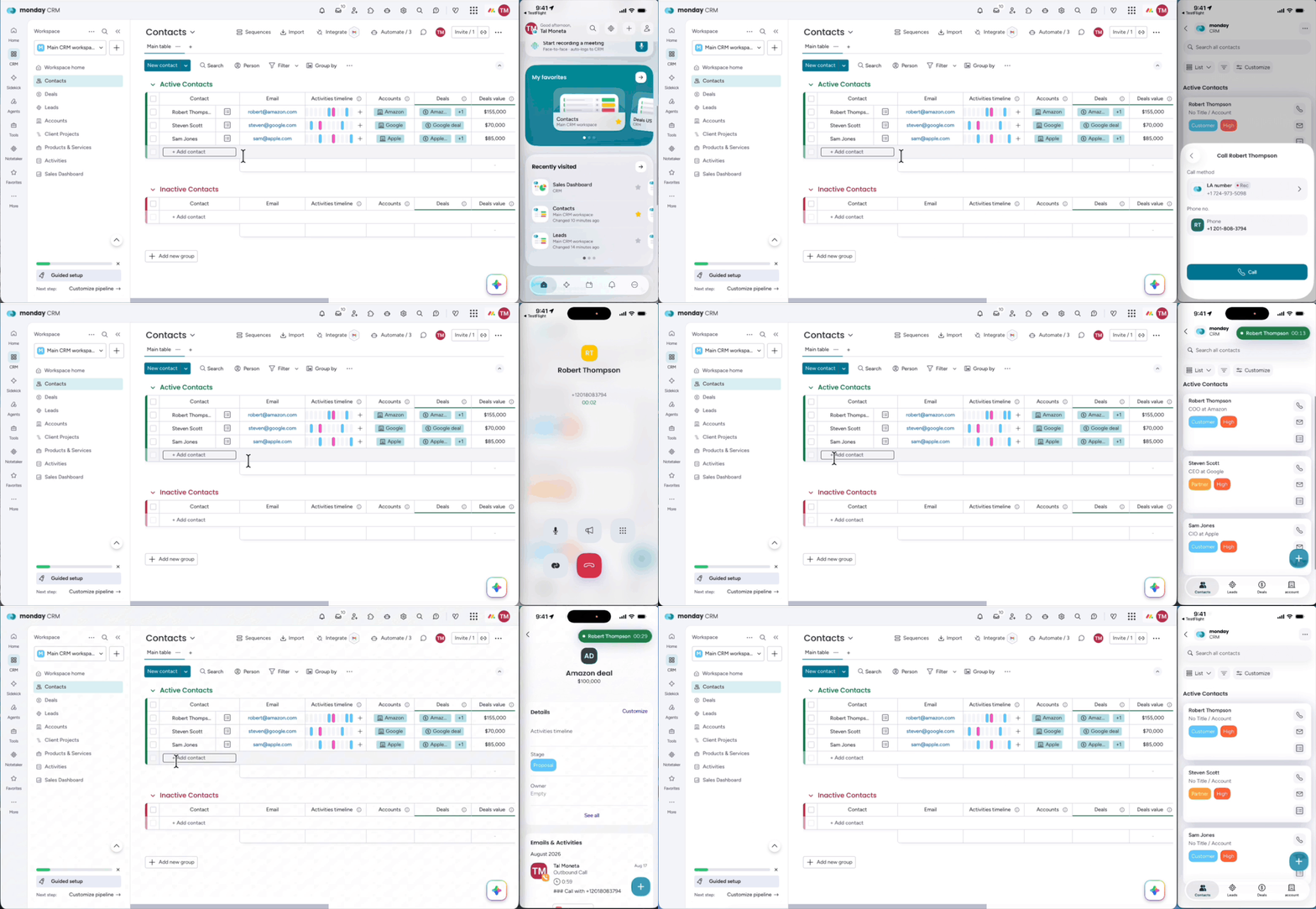
Inbound calling. Calls to your business number ring directly to the assigned team member's monday mobile app.
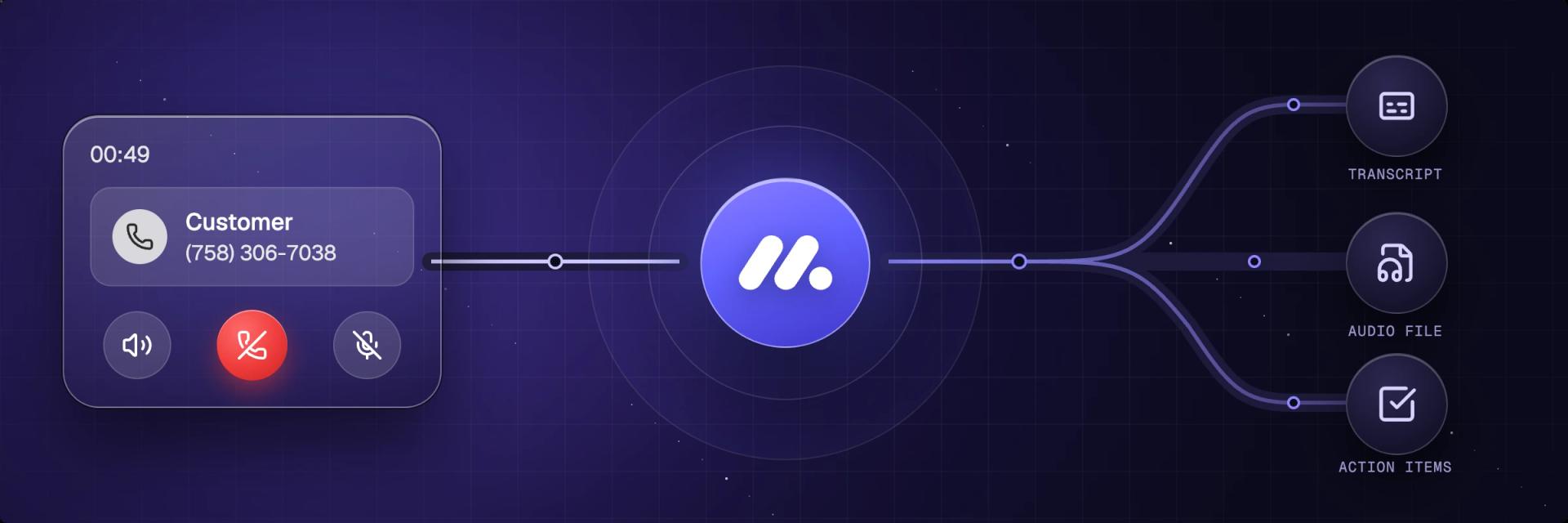
AI transcripts and summaries. Every call gets a full transcript with speaker labels and timestamps, a summary, detected topics, decisions, and concrete action items with owners, usually within 30 seconds to 2 minutes of hanging up.
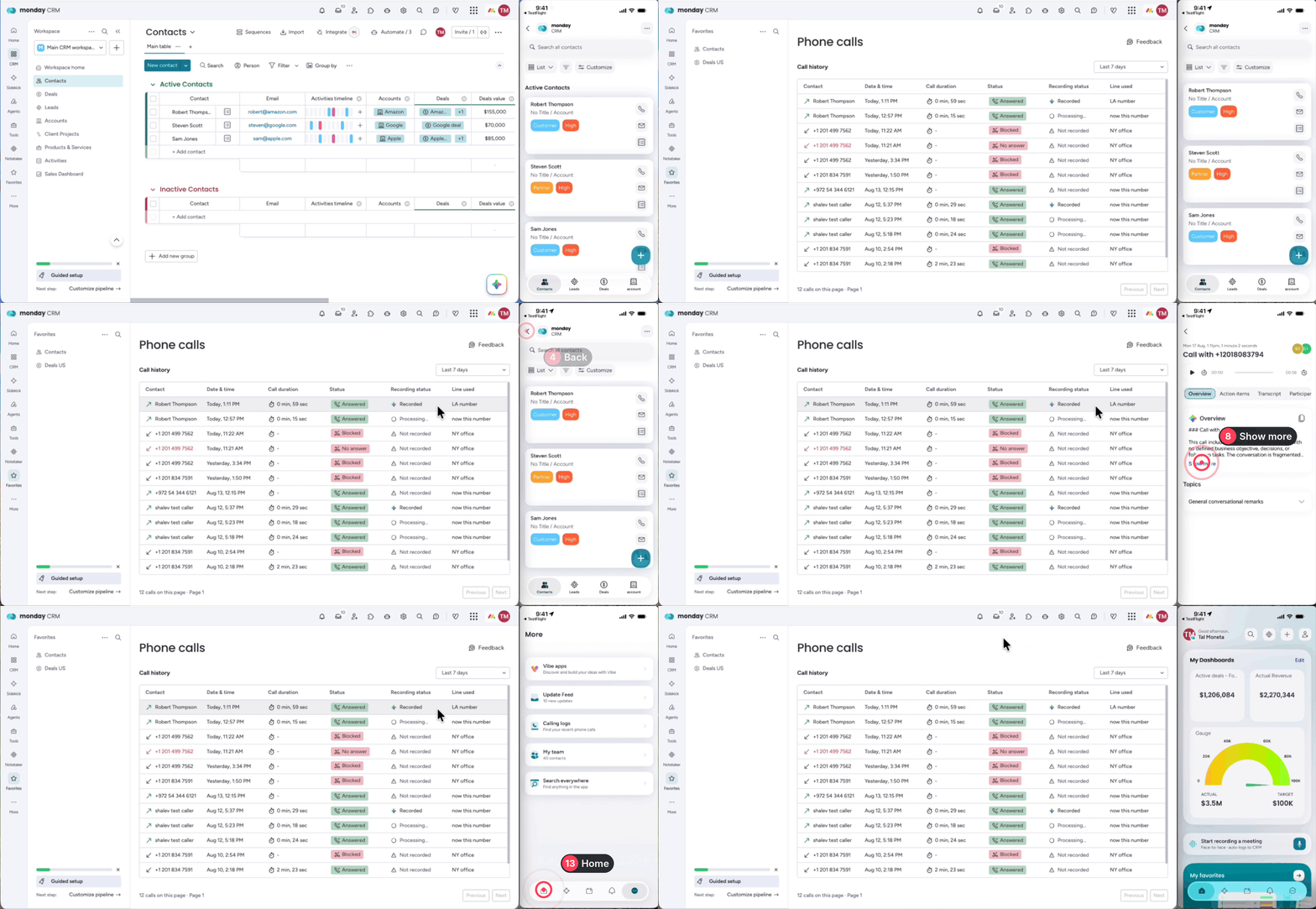
Automatic call logging. Every call lands on the CRM timeline automatically, with call type, duration, caller, status, and a playable recording.
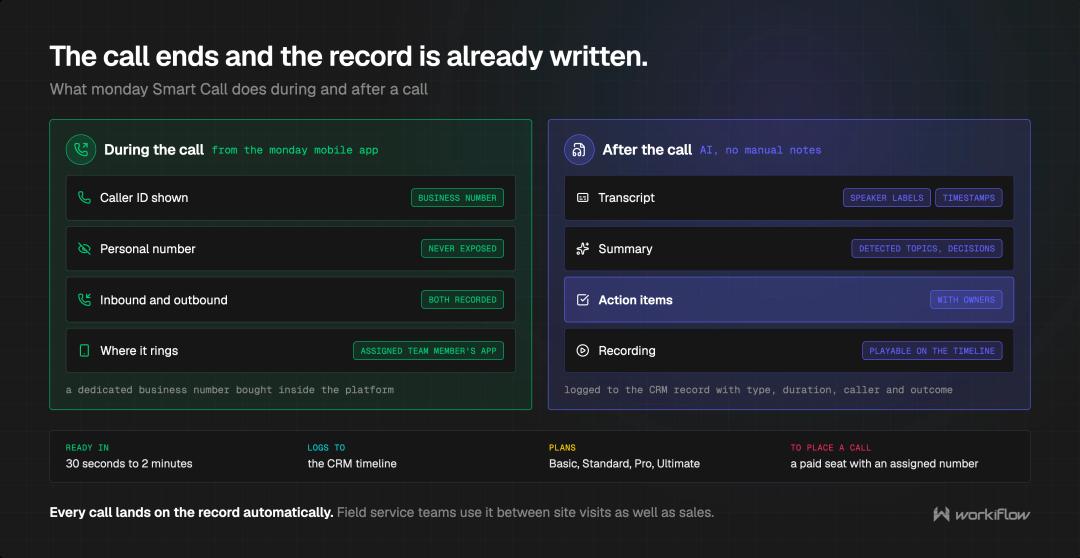
Caller ID protection. Your team's personal numbers are never exposed. Calls present the business number as the caller ID.
Verified Caller ID. Optionally display a real number you already own, a mobile line, an office line, instead of your monday business number.
Admin number management. Assign, unassign, and release numbers, and track usage and minutes from a central admin hub.
Smart Call isn't just for sales teams either. Field service reps and inspectors use it to log calls made between site visits, and teams can keep call recordings on file specifically for compliance and audit purposes.
Setting Up monday Smart Call (Admin)
Setup is completed by an admin in Account Settings. It takes a few minutes.
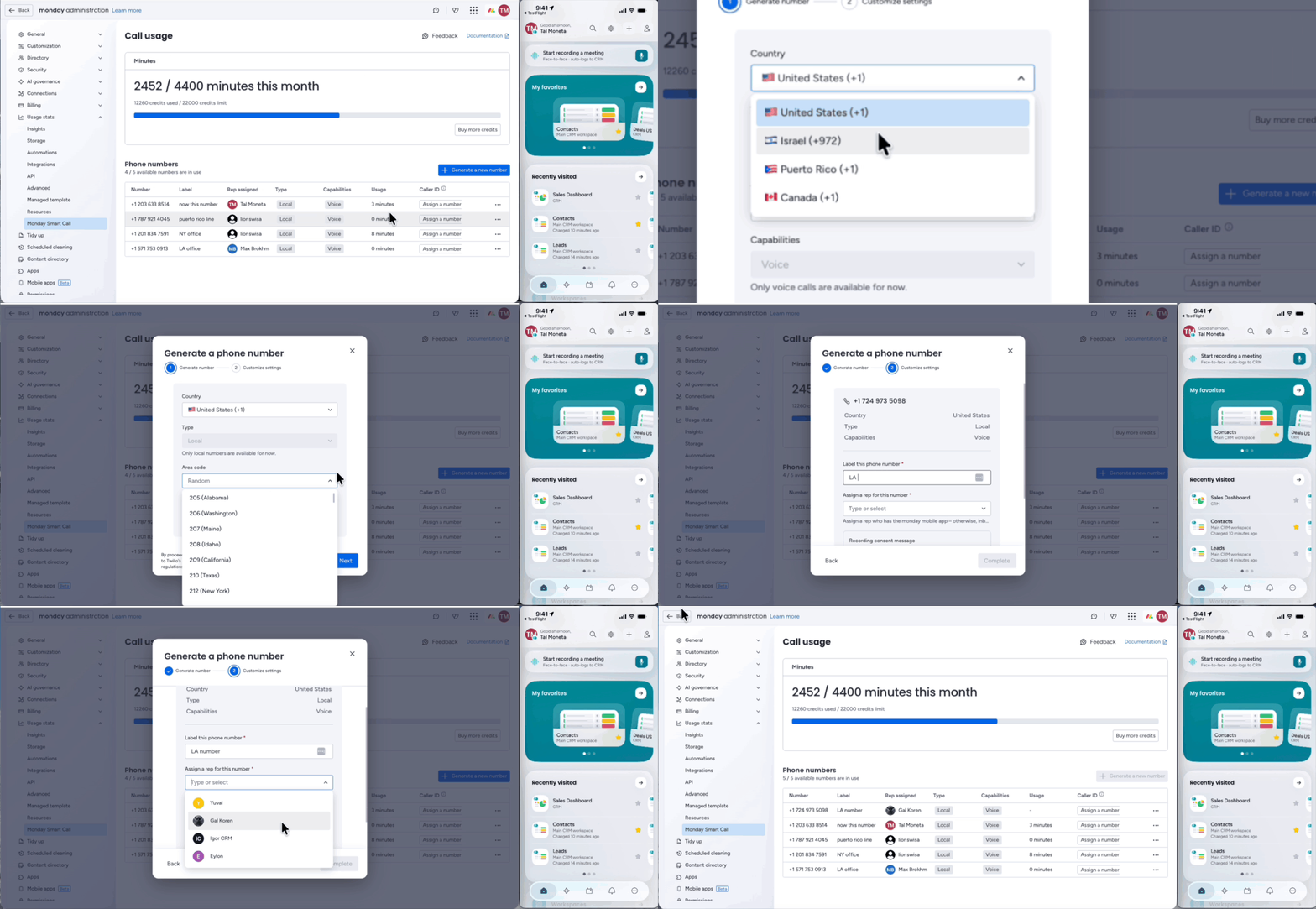
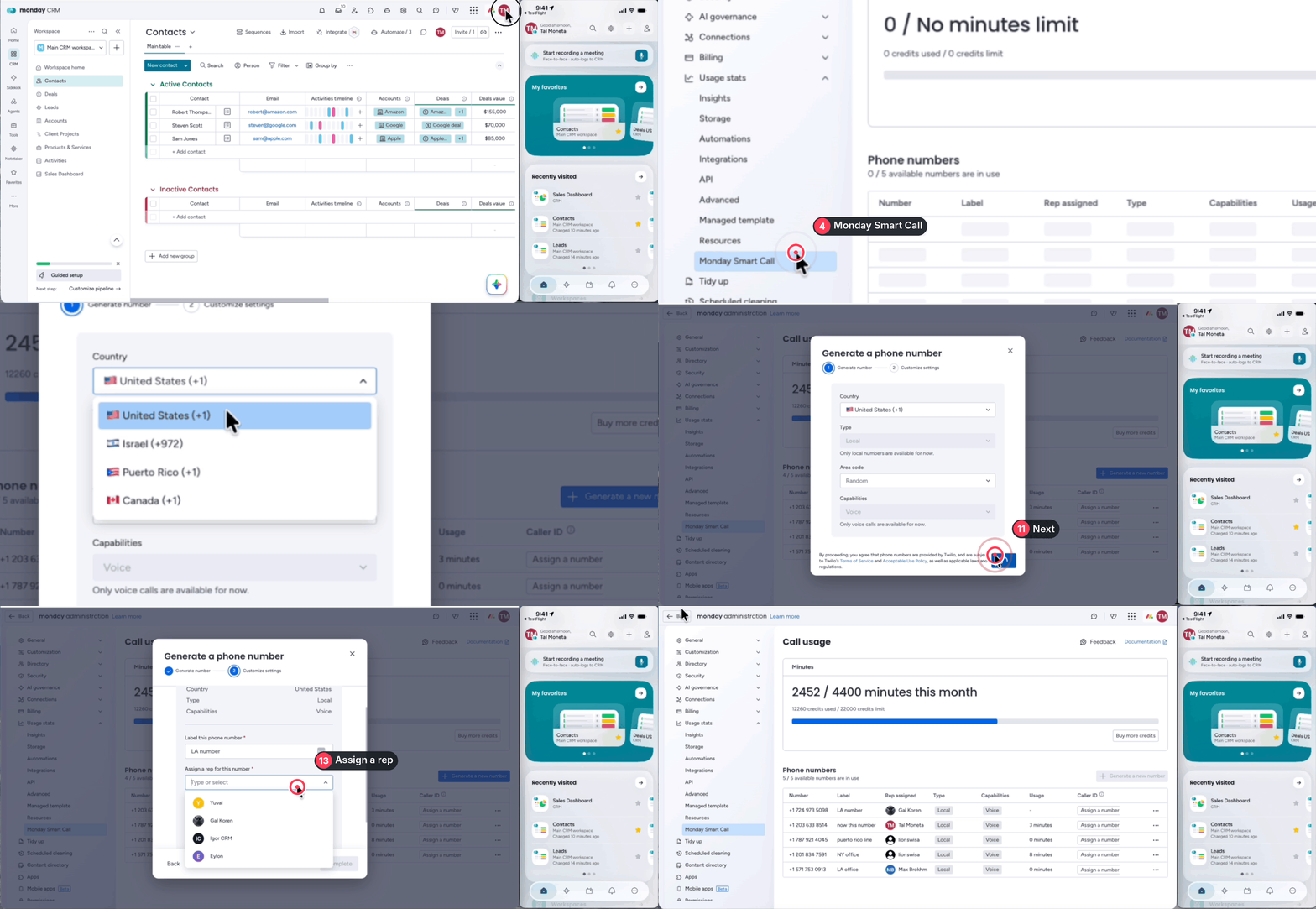
- 1.Go to Usage stats and select monday Smart Call from the left panel.
- 2.Click + Generate a new number.
- 3.Select an area code where available, and click Next.
- 4.Assign a label for the number, then assign it to a team member.
- 5.Select Complete. The number now appears in the Phone Numbers tab.
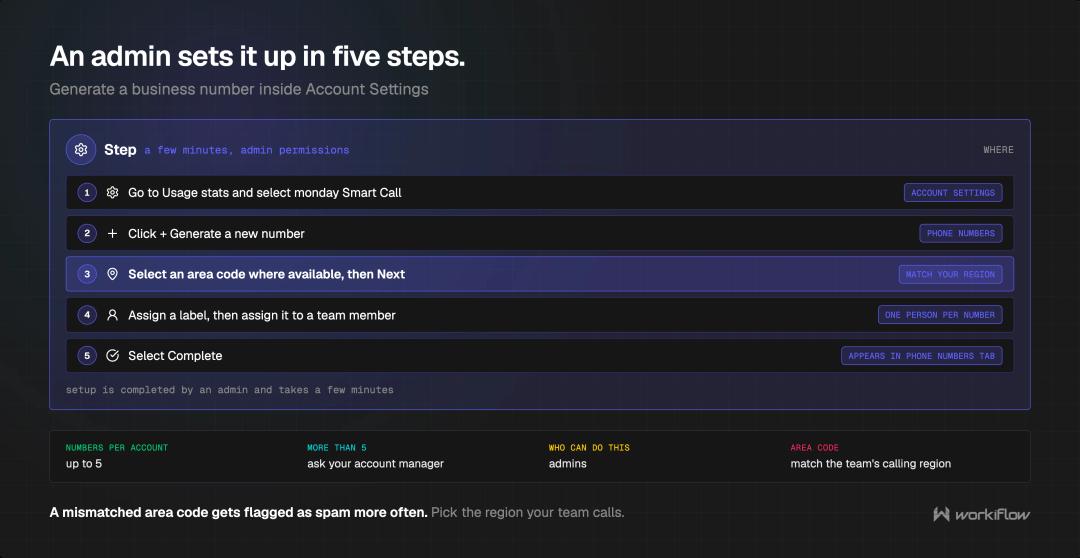
Your account can hold up to 5 numbers. Need more? Contact your account manager or monday.com support.
One setup detail worth getting right the first time: match the area code to your team's actual calling region where possible. Numbers with a mismatched area code are more likely to get flagged as spam by carriers, more on avoiding that below.
Making a Call From the Mobile App
Once a number is assigned, placing a call takes two taps.
- 1.Open a lead, contact, or deal record in the monday mobile app.
- 2.Tap the phone number in the Phone field or phone column.
- 3.The call places from your assigned business number. When it ends, you'll be prompted to log an outcome.
Calling From the Desktop App
You can trigger a call from the desktop, but the call itself still routes through your mobile device, so keep your phone nearby.
Before you start: notifications need to be enabled for the monday mobile app. Go to your phone's Settings > Apps > monday > Notifications and turn the toggle on.
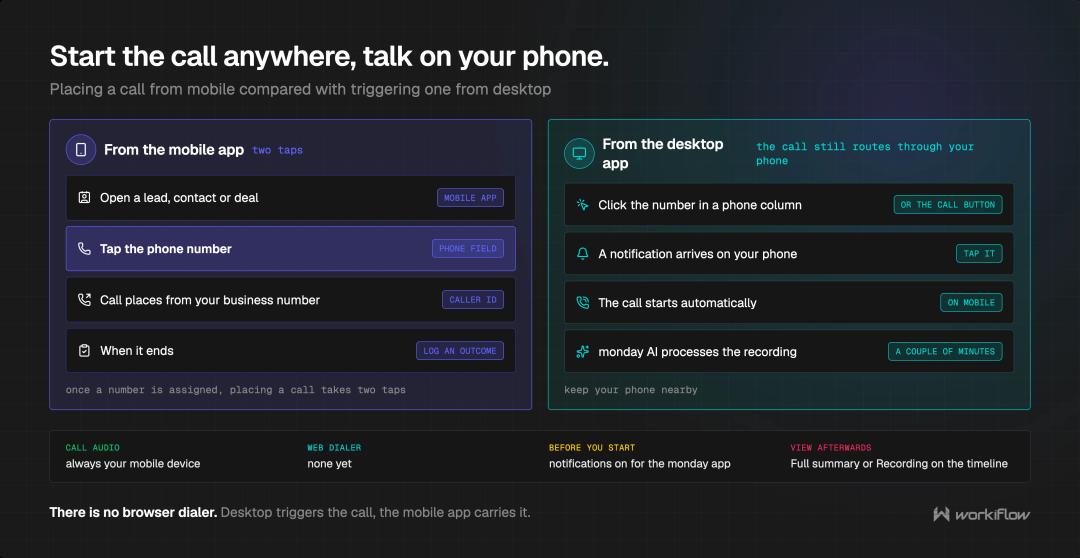
- 1.Click the phone number directly in a board's phone number column, or open the item card and click the call button.
- 2.A notification appears on your mobile device. Tap it to open the app, and the call starts automatically.
- 3.Talk freely. When the call ends, monday AI processes the recording, usually a couple of minutes.
- 4.Once processing finishes, the call logs automatically to the contact's timeline.
To view it afterward: open the contact's item card, go to the timeline, and click Full summary for the complete AI breakdown, or Recording to play back or download the audio.
Setting Up Verified Caller ID
If you'd rather your prospects see a number they already recognize, Verified Caller ID lets you display a real number you own instead of your monday business number. Setup takes a few minutes from Admin > Usage stats > monday Smart Call > Assign a number.
One important catch: when Verified Caller ID is active, callbacks to that number don't route through monday, so they won't be recorded, transcribed, or logged automatically. Worth knowing before you turn it on for a number you use elsewhere too.
What Smart Call Can't Do Yet
Worth knowing before you build a process around it. As of this release:
- No web dialer. Calls can't be placed or received from a browser, only the mobile app.
- US, Canada, Puerto Rico, and Israel numbers only. No other international numbers yet.
- No number porting or bring-your-own-number, beyond what Verified Caller ID allows for display purposes.
- No advanced dialer features, power dialer, voicemail drop, and local presence aren't available.
- No call center capabilities, no IVR, queues, routing, or call transfers.
- 5-number limit per account by default.
How to Avoid Getting Flagged as Spam
Carriers flag numbers based on caller ID reputation, calling behavior, and community-reported lists, not anything monday.com controls directly. A few things that actually help:
- Match your number's area code to the region you're calling.
- Keep cold outbound volume to around 60 calls per hour per number.
- Aim for calls longer than 15 seconds where possible.
- Use Verified Caller ID for warm or existing relationships.
- Avoid rotating numbers frequently, new numbers start with a weaker reputation than established ones.
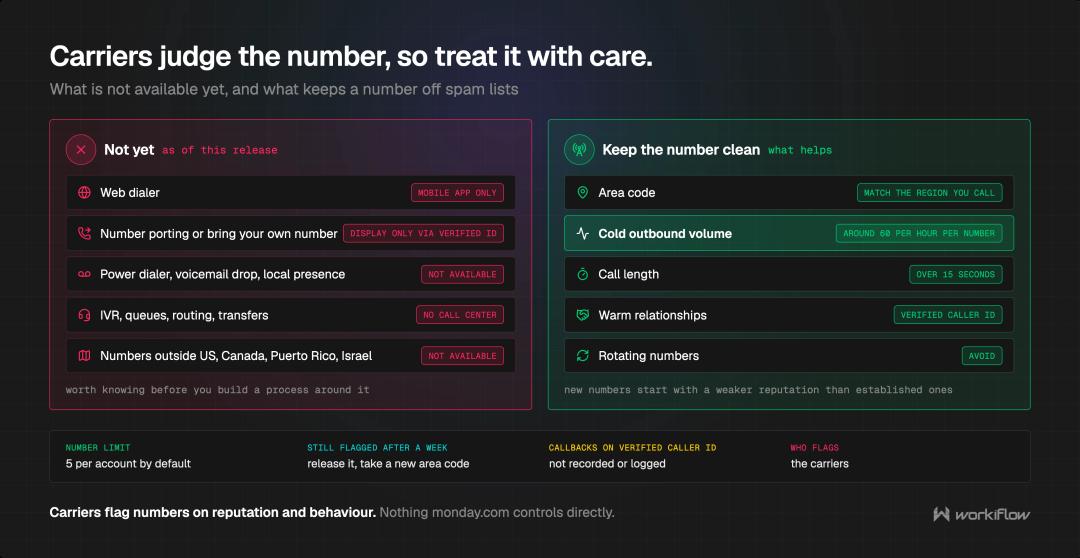
If a number stays flagged after a week, pausing it and releasing it in favor of a new number with a different area code tends to resolve it.
Where This Fits Into a Bigger CRM Setup
Smart Call is a strong feature on its own, but it's still one piece of a larger system running by your team already. The real value shows up when call summaries, action items, and AI credit usage are actually tied into how your boards, automations, and reporting already work. That's the layer a managed monday.com partner typically handles: setting sensible AI credit limits before they're needed, making sure call data flows into the right boards, and keeping the whole CRM, not just the calling feature, running as one coherent system.
Book a free 30-minute consultation with Workiflow if you want help wiring Smart Call into the rest of your monday.com setup.
FAQ
Can I use my existing business number with monday Smart Call?
Not directly. Smart Call is built around purchasing a new US number inside monday.com. You can display an existing number as your caller ID using Verified Caller ID, but you can't port an existing number in.
Does monday Smart Call work on desktop?
Partially. You can view call logs, recordings, and full AI summaries from desktop or any browser, and you can trigger a call from the desktop app, but the call itself always routes through the assigned team member's mobile device.
Is monday Smart Call available outside the US?
Currently it supports US, Canada, Puerto Rico, and Israel numbers only. Other international numbers aren't available in this release.
Who can set up a Smart Call for a team?
Generating and assigning numbers, and managing AI credit limits, requires admin permissions. Once a number is assigned, any team member with a paid seat can place and receive calls without needing admin access themselves.